Monitoring Your Mailbox Size
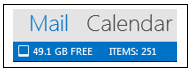
Outlook accounts at FGCU have a total capacity of 5GB. To see how much space you have left in your Mailbox:
- Right click your mouse in the status bar at the bottom of your Outlook display
- Select Quota Information
- Note that the available space (Free) is now visible in the status bar
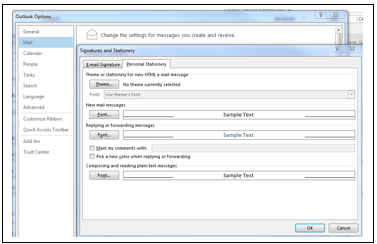
TIP: While having a Theme selected does not take up file space in your Outlook, it can slow down operations. To turn off Themes:
- Navigate to File tab on the Ribbon
- In Options, select Mail > Stationery and Fonts > Personal Stationery tab
- Turn off (de-select) any Themes
Deleted Items
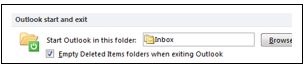
Messages in the Deleted Items folder still count against Mailbox size. It is good practice to empty your Deleted Items when you exit Outlook. There is a setting in Outlook to do this automatically.
- Select File tab > Options
- Select Advanced from the left menu
- Under Outlook start and exit, check the box next to Empty Deleted Items folders when exiting Outlook
TIP: Remember to delete items from your Sent folder as well as Inbox when cleaning up your Mailbox
Arranging Messages
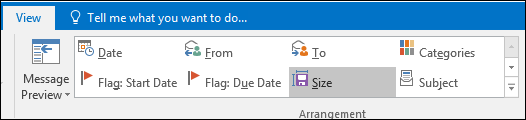
The default arrangement for viewing messages is by date. To see messages that are taking up a lot of space, select a different arrangement.
- On the View tab, in the Arrangement group, click the Arrangement you want from the gallery of options
- Sorting by Size will allow you to see the messages taking up the most file space and manage them appropriately
TIP: Sort messages by From to clean out newsletters, recurring messages from the same sender, etc.
Attachments
Attachments can take up a lot of space in your Mailbox. To retain an email message but not the Attachment:
- Open the message
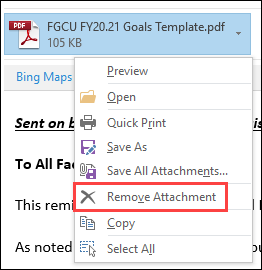
- Right click the Attachment
- Select Remove Attachment
- Save the message, then Close it
Attachments can be saved in local or shared drive folders and the accompanying message either moved to an Outlook Folder or deleted to free up space. Remember to check Sent messages for attachments also.
TIP: If a file you want to send is in a shared folder, consider sending a link instead of an attachment
Conversations
When Conversations is turned on, messages that share the same subject appear as Conversations that can be viewed as expanded or collapsed. You can quickly review and act on individual messages or complete Conversations.
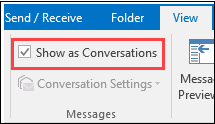
- On the View tab, Messages group, select the Show as Conversations check box.
- Click All Folders or This folder.
To help reduce Mailbox size, use Clear Conversations tool to remove redundant pieces of the Conversation
- Select Conversation you want to clean up
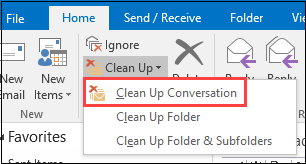
- Go to Home tab on Ribbon; in Delete group, select drop down menu for Clean Up, then Clean Up Conversation
- When popup appears, select Clean Up
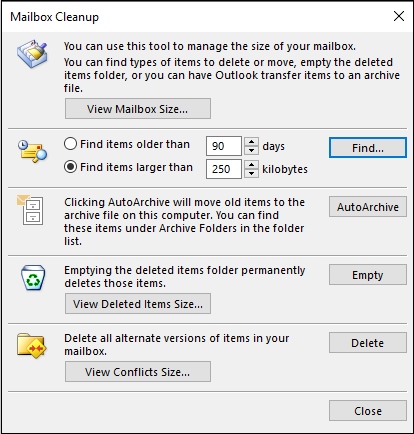
Mailbox Clean Up Tools
- Select the File tab on Ribbon
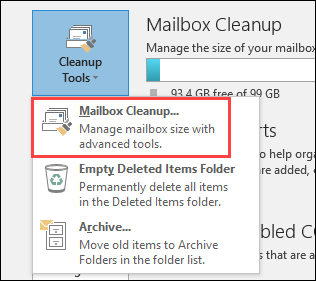
- Click on the Cleanup Tools button
- Select Mailbox Clean up Option
Tips for keeping your Mailbox clean:
- Store attachments outside your Mailbox in a folder on your computer, shared drive, or One Drive
- Send as few attachments as possible & keep them small, or send links instead
- Send necessary attachments in a compressed format like zip files
- Periodically check the size of your Mailbox or leave the Quota Information tool visible
- Check Sent files for attachments when cleaning up your Mailbox
- Empty Deleted Items frequently or use settings to do it automatically
Always abide by the FGCU policy on email use, and retention of messages as directed by the Florida Sunshine Law.