Ribbon Tools
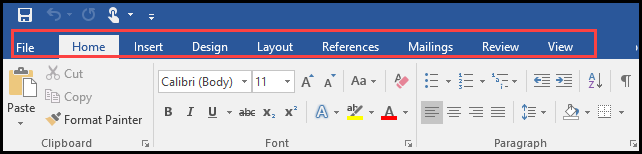
The banner across the top of a Word document is called the Ribbon. It is comprised of tabs containing tools for creating, editing and managing your document.
Home Tab
- Cut, Copy & Paste items from/to your document
- Change font type, size and add emphasis
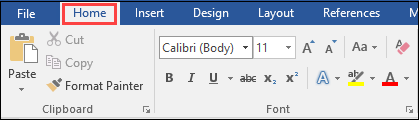
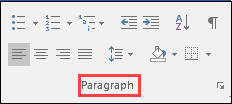
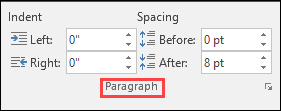
- Set structure of paragraphs: lists, alignment, spacing, etc.
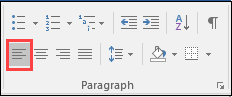
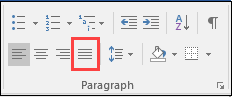
- Align Text Left sets the start position of text that will then run to the right as you type.
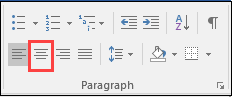
- Align Text Center sets the position of the middle of the text. The text centers on this position as you type.
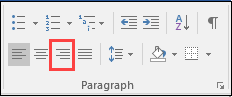
- Align Text Right sets the right end of the text. As you type, the text moves to the left.
- Justify aligns text to both the left and right margins, adding extra space between words as necessary.
4. A Style is a set of formatting characteristics that you can apply your document to quickly change its appearance. It provides structure to the document and is especially important for accessibility.
Set Style
- Select the text you want to format
- Click on the Home tab
- Select a Style (hover cursor over Style to view change to document) Click to apply. [Mac: must select Style to view change-no preview]

Insert Tab
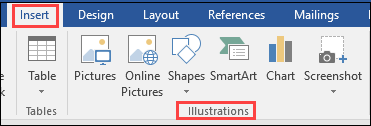
- Place Pictures, Shapes and Charts into your document
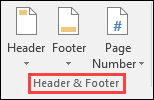
2. Add Header, Footer and Page Numbers
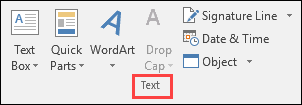
3. Add Text Boxes, Word Art, Signature Line, etc
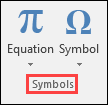
4. You can even insert Equations & Symbols!
Design Tab
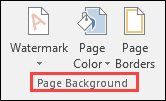
The Design tab allows you to select/change an overall Theme for your document and add Color, Borders and/or a Watermark (especially useful for draft documents) to the Page Background.

Layout Tab
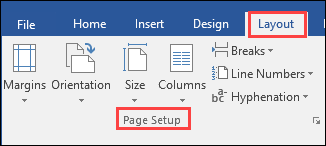
Select the Page Layout tab to adjust Margins, page Orientation, Size, number of Columns, and Spacing within paragraphs. Click the drop-down arrow to view all options under a particular item.
References Tab
The References Tab contains tools that will be useful when creating a research paper or other complex document where Footnotes, Citations, Captions and/or Table of Contents may be helpful. The Table of Contents tool enables automatic updating with revision of document contents.

Review Tab
Select the Review tab to check Spelling and Grammar, use the Thesaurus, determine Word Count, even Translate your document into another language!

View Tab
To view your document in various modes, select the View tab
- Select Read Mode for a simple read-through [Mac: not available]
- Print Layout illustrates how your document will appear when it is printed
- Web Layout illustrates how your document will look as a web page
- Select other options for additional views

File Tab
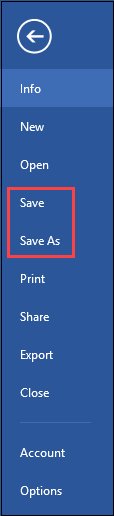
The File Tab provides access to the "backstage view" for document management, including saving and printing your document.
- To Save your document:
- File> Save (to save document to current location)
- File > Save As (to save a new document or change the location of an existing document)
If you have made changes to your document since the last time you saved it and are using the same file name, Word will ask if you want to overwrite the existing file with the new one. To save both versions, change the file name before saving.
- To Print your document:
- File> Print
- Print menu will appear as well as a preview of the document to be printed. Select your options and click Print.

- AutoRecover
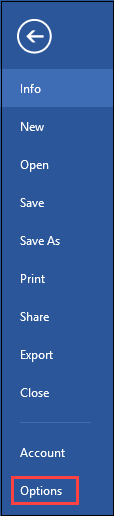
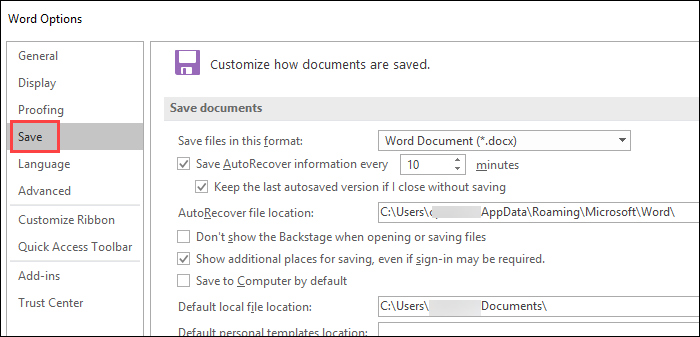
- File >Options>Save [Mac: Word>Preferences>Output & Sharing>Save>AutoRecover Info]