Tracking Changes is a great tool to use when multiple people are reviewing and editing a document. Its use is critical when presenting legal or policy documents to which changes have been made.
Turn on Track Changes
Note: If the Track Changes command is unavailable, you may have to turn off Document Protection. On the Review tab, in the Protect group, click Restrict Editing, and then click Stop Protection at the bottom of the Protect Document task pane. (You will need to know the document password if it is password-protected.)
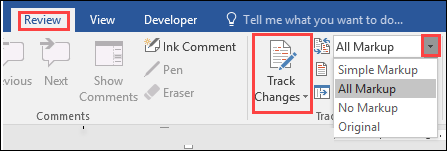
- On the Review tab, in the Tracking group, click the Track Changes icon
- Click the dropdown for Display for Review box and select desired option for Markup display
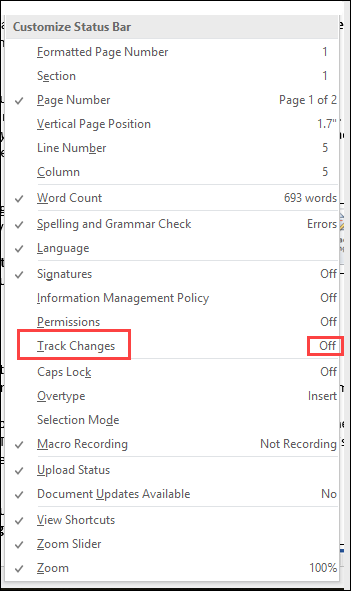
Note: To add a Track Changes indicator to the status bar at the bottom of the screen, right-click the status bar and select Track Changes option. Click the Track Changes indicator on the status bar to turn Track Changes off.
Turn Off Track Changes
- On the Review tab, in the Tracking group, click the Track Changes icon
When you turn off Track Changes, you can revise the document without marking what has changed. Turning off the Track Changes feature does not remove any changes that have already been tracked. To remove previously tracked changes, use the Accept and Reject commands under the Review tab, Changes group.
Review a summary of Tracked Changes
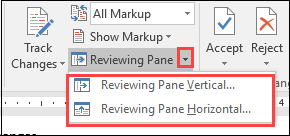
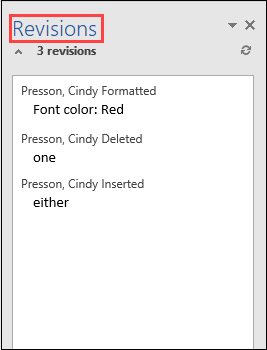
Under the Review tab, in the Tracking group, click Reviewing Pane dropdown to view the summary at the side or bottom of your screen by selecting Vertical or Horizontal
Review each Tracked Change and Comment in sequence
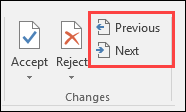
- On the Review tab, in the Changes group, click Next or Previous.
- Do one of the following:
- In the Changes group, click Accept.
- In the Changes group, click Reject.
- In the Comments group, click Delete.
- Accept or reject changes and delete comments until there are no more Tracked Changes or Comments in your document.
- To ensure all Tracked Changes are accepted or rejected and that all Comments are deleted, on the Review tab, in the Tracking group, click Reviewing Pane. The summary section at the top of the Reviewing Pane displays the exact number of Tracked Changes and Comments that remain in your document.
- On the Review tab, in the Changes group, click dropdown for Accept
- Select desired option: Accept All Changes or Accept All Changes and Stop Tracking

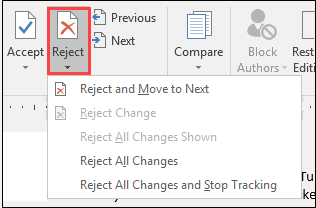
- On the Review tab, in the Changes group, click dropdown for Reject
- Select desired option: Reject All Changes or Reject All Changes and Stop Tracking
Review changes by specific reviewer
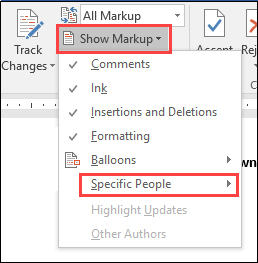
Under the Review tab, in the Tracking group, select dropdown for Show Markup. Expand Specific People, then clear all check boxes except the names of the desired reviewers. To select or clear the check boxes for all reviewers on the list, click All Reviewers
Print a Document showing Markup
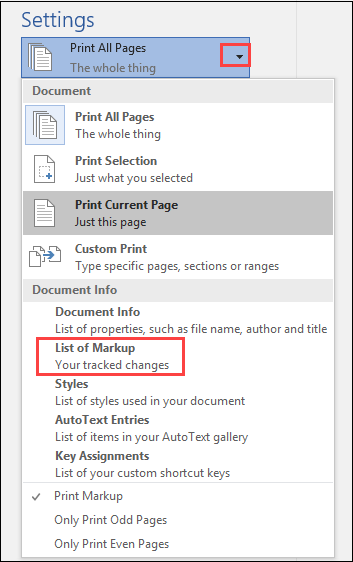
Under File tab, select Print>Print all Pages dropdown> Print markup
Print a List of Markups
Under File tab, select Print >Print all pages dropdown >List of markups
NOTE: Once you have accepted or rejected the changes and selected "Stop tracking", it is good practice to save your final document by another name, as an extra measure against retaining the tracked changes and comments; this may be critical when sharing the final document.