Auto-update date and time
In business you often have to create a dated document, such as a monthly invoice, on a recurring schedule. You can save yourself some time by adding a date function that automatically updates the date each time you create a new invoice.
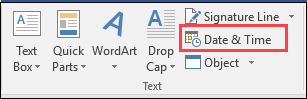
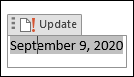
Place the cursor where you want the date to appear, navigate to the Insert tab and select Date & Time in the Text group on the Ribbon. You'll have your choice of formats—just be sure to check the Update Automatically button before you click OK.
Remove all manual formatting
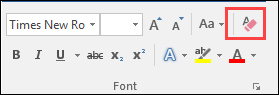
It happens to everyone who uses Word on a regular basis—sometimes you mess up the formatting to a point where you just want to start over. There is a button on the Home tab of the Ribbon (in the Font group) that many people don't realize is there. It is the Clear All Formatting button and it can be a real time saver.
Highlight the text you want to clear and click that button. All manual formatting will be removed and the text will revert to the underlying style. Then you can start over!
View side-by-side documents
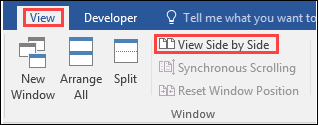
On occasion you may want to view documents side by side. Word makes it easy with a feature found on the View tab of the Ribbon.
Open the documents in question and navigate to the View tab, where you will see the View Side By Side button. Clicking it will split the display in half, so you can see both documents at the same time. Clicking the Synchronous Scrolling button on the View tab will make comparison even easier.
Style Tips
If you're creating a large document, it's imperative to make it consistent – your readers will notice if it's all over the place. Rather than manually formatting your document's fonts and weights, select the text and use the Styles panel in the Home tab to apply different styles (normal text, headings, quotes and the like).
By painting your text in this manner, you can easily apply one of Word's built-in document formats (available from the Design tab) to completely transform your document in a click, or reconfigure individual styles (right click them in the Styles panel) to change them document-wide. This will also enable you to use Word's built-in table of contents tools without any further tinkering.

Smart Lookup
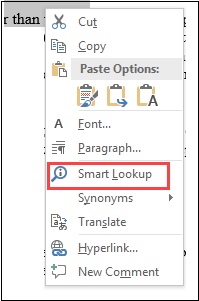
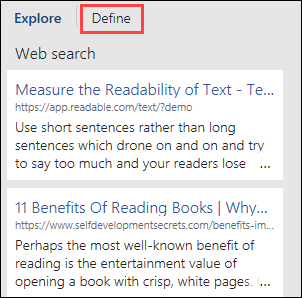
Perhaps a tool most suited to documents you're reading rather than writing, Smart Lookup (select a bit of text, right click it and select- you guessed it- Smart Lookup) can help you find out more information about the text in your documents by doing a neat Bing search in a column on the side. Click Define at the top of that column and you'll get a definition of the word from the Oxford Dictionary.
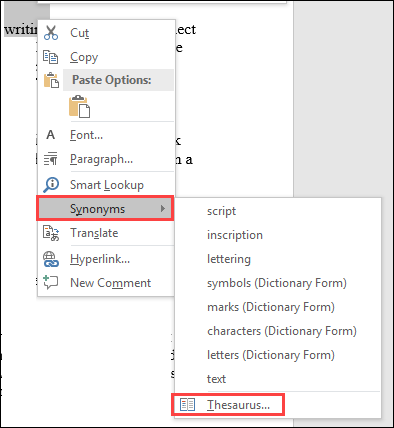
As long as you're connected to the Internet, you can also use the right click menu to grab quick synonyms for words, and delve further into the synonym menu to look them up more deeply in a Thesaurus sidebar.
Building Blocks
When you're constructing a document, it may be tempting to form all of its components by hand using Word's design tools; a text box here, a fancy footer there. That's certainly possible, but it takes time and effort that might be better spent writing.
Try, instead, Word's huge collection of page building blocks (Insert > Quick Parts > Building Blocks Organizer). They're quick, good-looking objects that you can insert in an instant to add flair to your documents. If they don't quite fit your style, you can tweak the design and use Insert > Quick Parts > Save Selection to keep them on file for the next time you need them.
