Excel provides you with the ability to create formulas for automatic data calculation; once you learn the basics of formula creation and use, the possibilities for application are endless!
Creating a Basic Formula
Formulas compute answers based on the information set up in the formula. It also recalculates the results automatically when you change the values used in the formula.
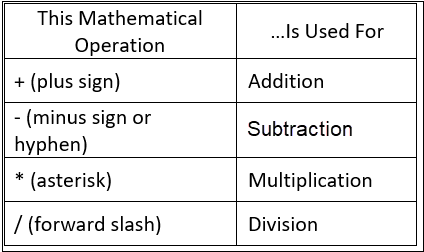
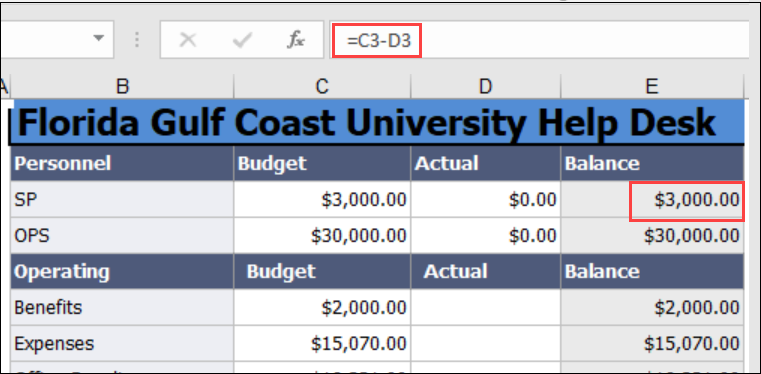
- Click the cell in which you would like the calculation/results to appear
- Let Excel know that you are about to enter a formula by entering the equal sign (=)
- Type the entire formula
- Example: C2=A2*B2
- Press Enter to perform the calculation
TIP: Instead of typing the cell reference(s) (C2, A2, etc.) into the formula, use your cursor to click in the desired cell at the appropriate place in the formula and Excel will enter it automatically; using the cursor to indicate the reference cells reduces typing errors
Copying and Pasting Formulas
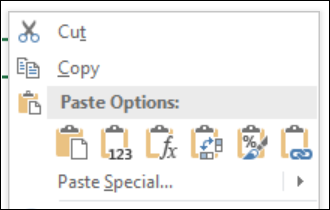
- Highlight what you want to copy, right-click and select Copy
- Click new cell location, right-click and select Paste
- There will be different paste options; hover your cursor over each icon to view the action before selecting
- Formulas- copies the formula and the cell references
- Values – copies value without the formula
- Transpose – reverses order of formula
Copy a Formula to Adjacent Cells
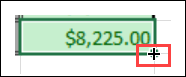
Click the crosshairs in the lower right corner of the cell with the Formula you wish to copy, and drag it through the cells you want to copy it to.
Copy a Formula to Another Worksheet
To copy a Formula from a different Worksheet:
- Type "=" in the cell in which you want the data to appear (on the target Worksheet)
- Navigate to and select the cell from which you wish to import/copy the Formula
- Press Enter to place the Formula into the target cell
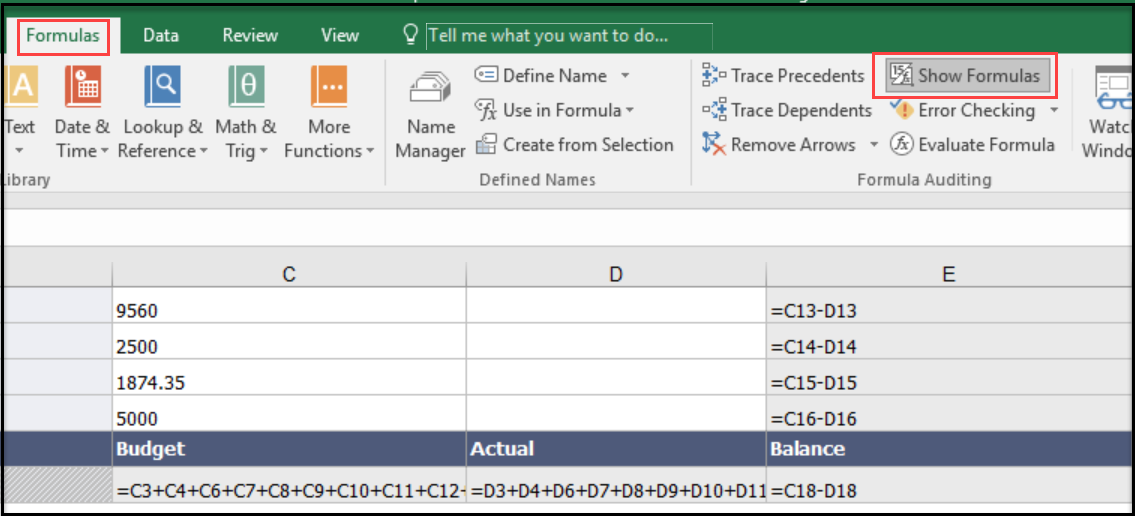
Show Formulas in a Worksheet
To quickly display all the Formulas contained in a Worksheet:
- Navigate to the Formulas tab on the Ribbon
- In the Formula Auditing group, click Show Formulas
- All Formulas in the Worksheet will display
- Click Show Formulas again to hide Formulas
Functions
A Function is a prewritten formula in Excel. To apply a Function to a selected cell:
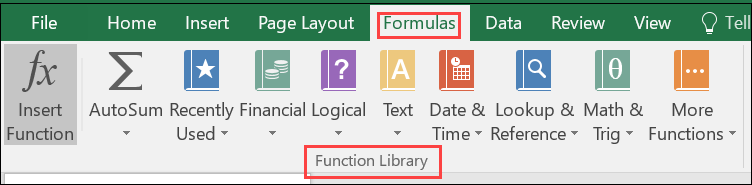
- Navigate to Formulas tab and find the Functions Library group
- Functions are grouped by categories
- Expand a category to see the grouped Functions
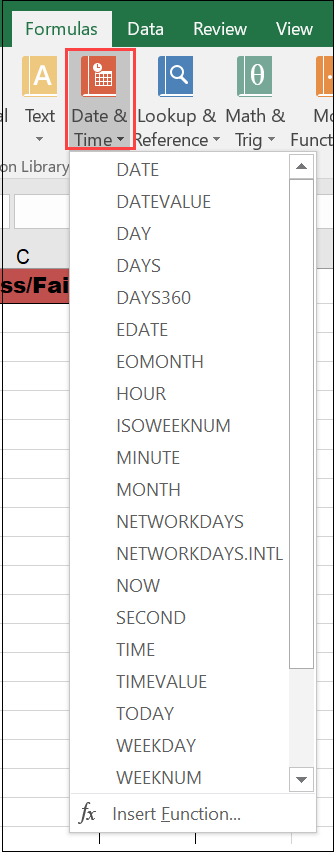
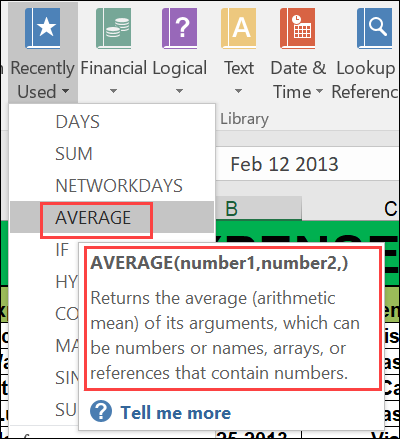
- Hover your cursor over the Function Name to see a brief description
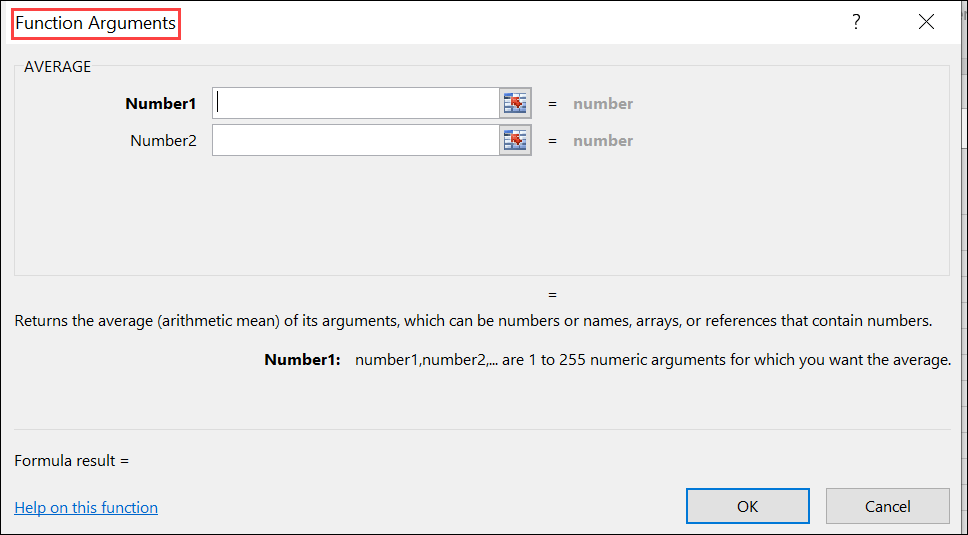
- Click a Function and a Function Arguments Dialog Box opens. Here you will specify the different parts to build the Formula for the Function
- Enter the necessary information and click OK to apply the Function to the selected cell
- AutoSum is the most commonly-used Function
- Recently Used button keeps a cache of Functions applied most by the user
VLookup
VLookup stands for Vertical Lookup; this Function can help you find specific information in large data tables.
- Select the target cell in which you wish to place the Function
- Navigate to Formulas tab ; in the Function Library group select the dropdown for Lookup & Reference category, select VLookup
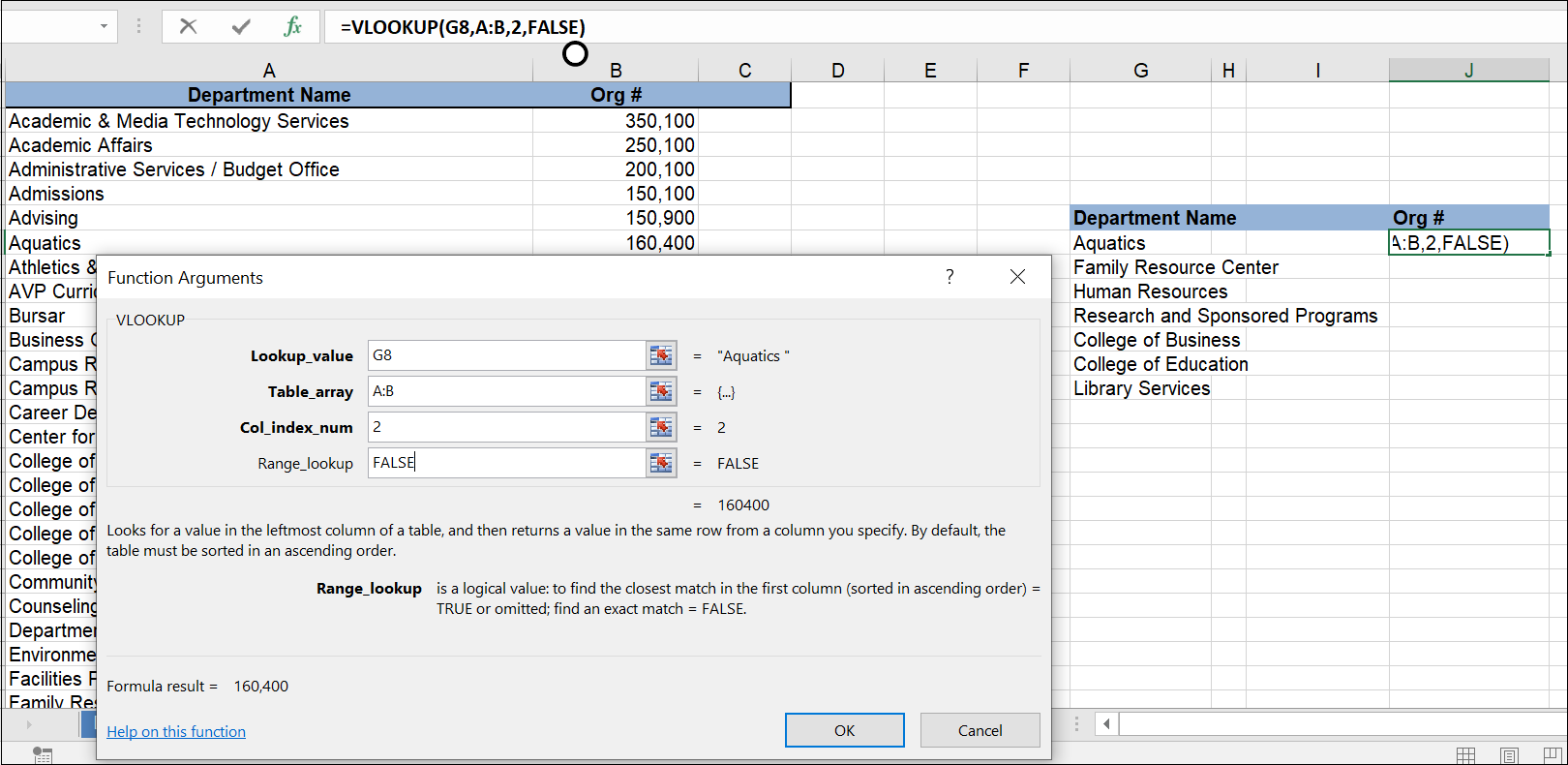
- In Lookup Value click the field you want to look up (target cell for data)
- In Table Array select the columns in which you are looking for the item
- In Col Index Num enter the number of the column that you want the information pulled from (while Columns are indicated by letters, the VLookup Function requires that you enter a number; Column A would be "1", Column B, "2", etc.)
- In Range Lookup enter False if you want an exact match or True if you want an approximate match (no "Range" = exact match!)
- Select OK
- Copy the Function to other cells as desired
If/Then Statement
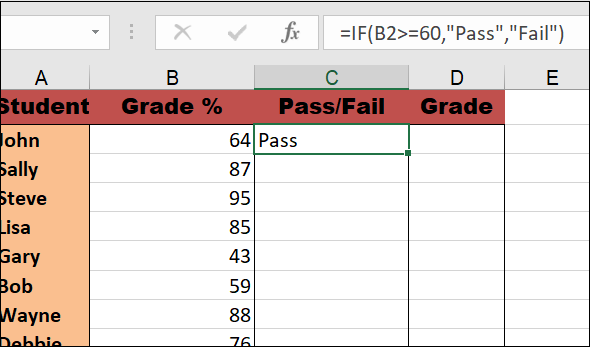
An If/Then Statement proves if one thing happens then something else will happen. It is a True/False condition. A good example is using the IF Function (creating an If/Then Statement) to indicate Pass or Fail for numerical grade values.
- Select the cell in which you want the results displayed
- Navigate to the Formulas tab; in the Function Library group expand the Logical category and select the IF Function
- In the Function Arguments dialog box:
- In Logical test box type the "argument" based on your data, i.e. "B2>=60". This argument indicates that if the value in cell B2 is greater than or equal to 60, something will occur.
- In Value if true box type what is to happen if value is met; i.e. “Pass”. This means, based on our argument statement, that if the value in cell B2 is 60 or higher, the student will Pass the course.
- In Value if false box type what is to happen if value is not met; i.e. “Fail”. This means, based on our argument statement, that if the value in cell B2 is less than 60, the student will Fail the course.
- Hit the Enter key or click OK to apply the Function to the designated cell

Copy the Function into other cells as desired.