Although numerous other presentation tools are available, PowerPoint remains an effective, powerful tool for sharing information, if used properly.
Tips for Effective Presentations (Live)
Although the following tips relate to a PowerPoint presentation by a live speaker, most of them apply to narrated, recorded presentations (such as "self-view" presentations at a kiosk) as well.
- Start with a script-design before you build
- Show only the point under discussion on the slide as you present
- Avoid lots of text-slides are designed to illustrate or emphasize a point
- Watch colors, text font & size, background design- don't obscure the info being presented
- Use images sparingly and appropriately-less is more
- You’re the star, not the slides!
- Open with an attention-grabber: statement, image, or video
Templates & Themes
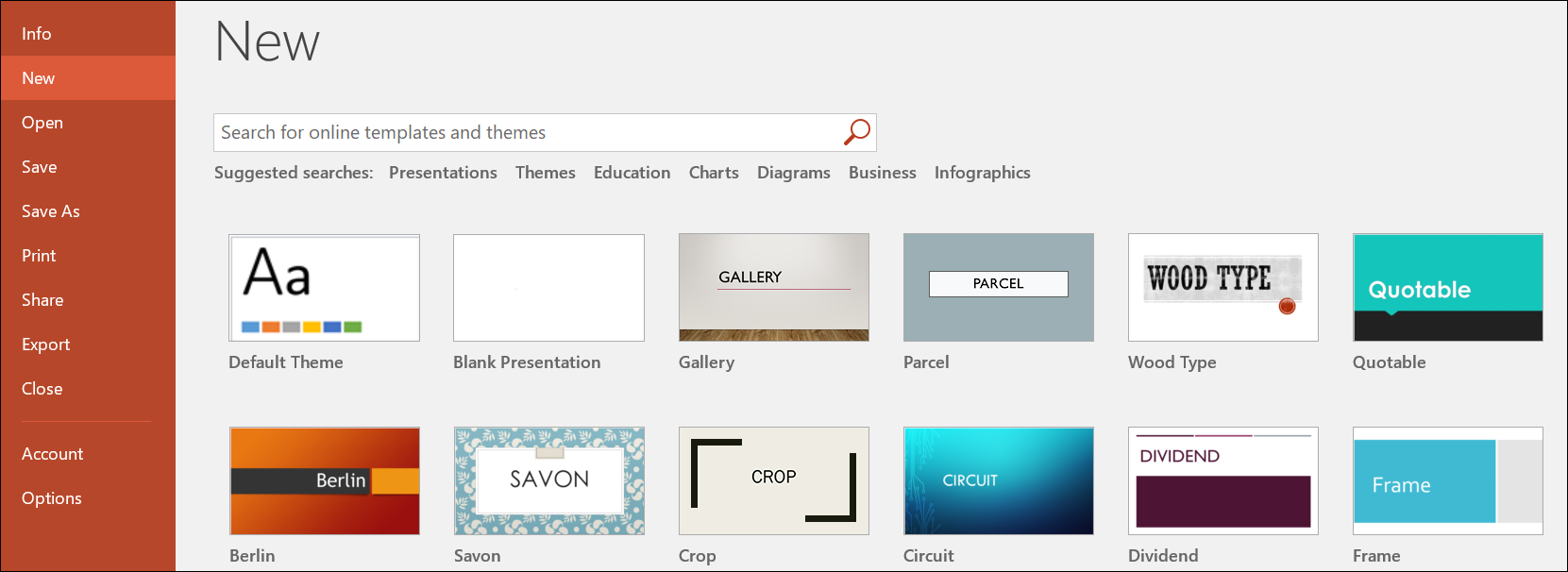
To choose a pre-formatted Template:
- From an existing presentation, go to the File tab and select New
- From your Desktop Taskbar or Start menu (no existing presentation), open the PowerPoint application
- Search for a desired template by using the Search field, or start with Blank and create your own!
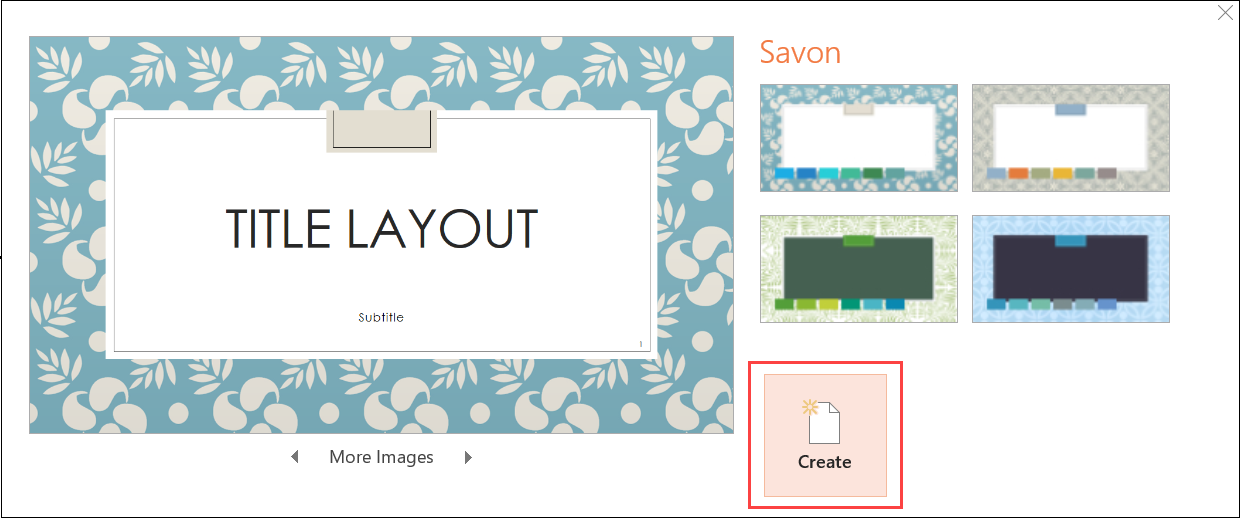
- In the Template preview, click the Create button to download
- Select the DESIGN tab to choose Themes, Variants, Size and Background changes, if desired [Mac: use dropdown tab to view all Themes]
*NOTE: Templates can be notoriously difficult to work with! If the Template isn't EXACTLY what you want, consider choosing a Blank template and building from scratch.

Backgrounds & Formatting
To set the Background design of your slides:
- Navigate to the Design tab
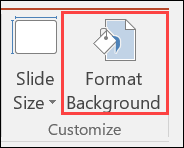
- In the Customize group, select the Format Background button
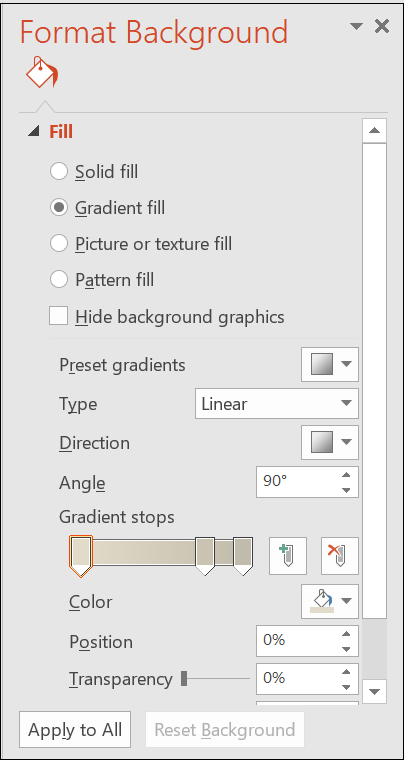
- Set options as desired
- To apply the customized Background to all slides, click Apply to All
- To remove changes and start again with the original design, click Reset Background
*NOTE: If Apply to All is not selected, the custom Background will apply only to the active slide
Insert & Format Text Boxes
Insert a Text Box
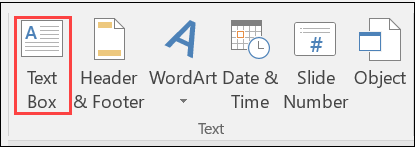
- Navigate to the Insert tab and in the Text group, click Text Box
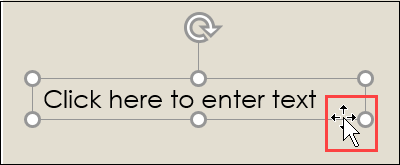
- Click in the slide and adjust the Text Box to the size and shape desired
- To add text, click inside the Text Box and type or paste text
- To move the Text Box, select the item; when the cursor becomes a cross-hair symbol, drag the Text Box to a new location.
Format a Text Box
- Select the Text Box
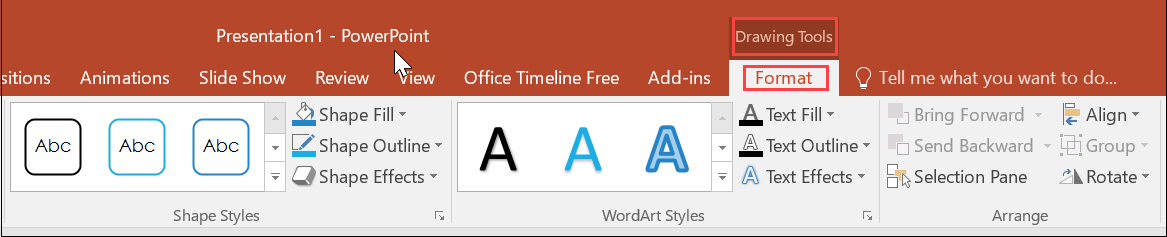
- Under the Drawing Tools contextual tab, Format option, select options as desired
*NOTE: This also works for pre-existing Text Boxes on the slide Template

Slide Bar
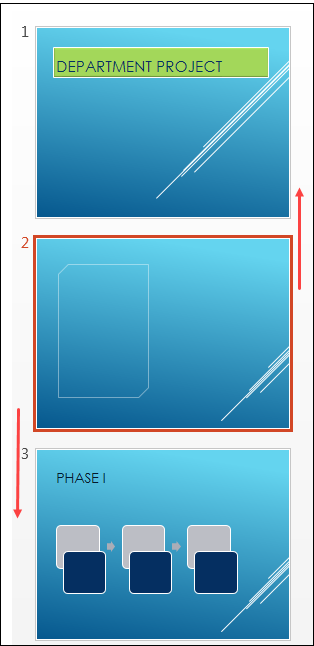
The Slide Bar appears at the left of your PowerPoint editing screen; it allows you to drag and drop (reorder) slides and insert new or existing slides into your presentation.
Reorder Slides
- Hold cursor on slide and drag to desired location in slide order
Add a Slide
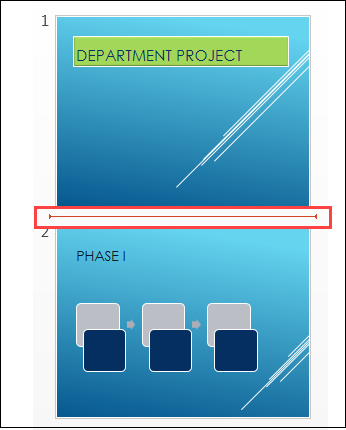
- On Slide Bar, click location to add slide (red bar will appear)
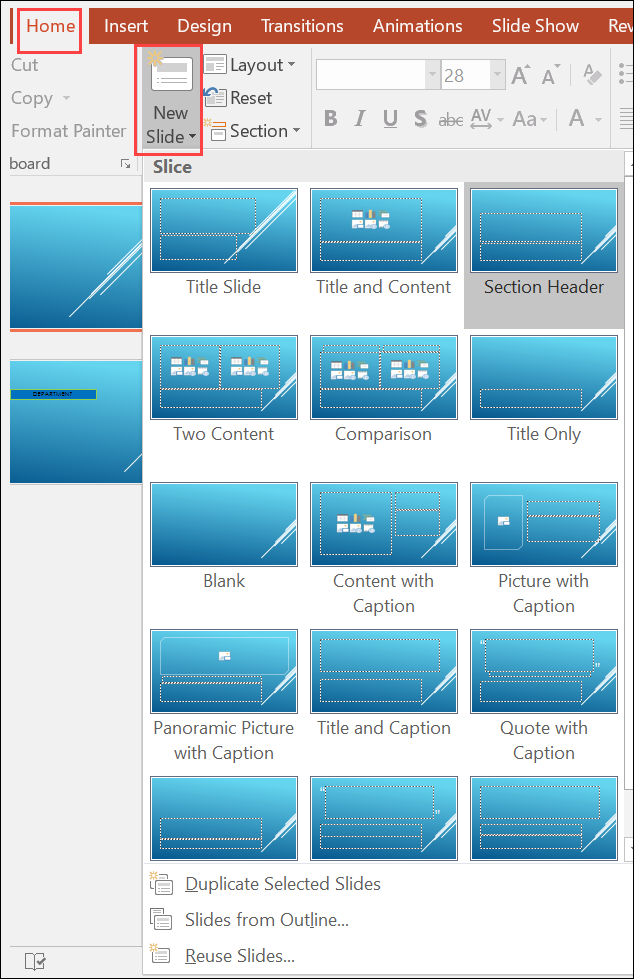
- Under the Home tab, click drop down arrow for New Slide
- Select desired slide format
- Slide will appear where indicator bar was placed
TIP: You can cut and paste (or copy and paste) slides from other presentations in this same manner. You can also copy the contents of a slide, or the entire slide into any other Office application.
Presenter Notes
Make it easy to keep track of what you want to say with each slide with the Notes feature; Notes are visible only to the Presenter during a presentation.
- Navigate to the View tab
- Click the Notes button
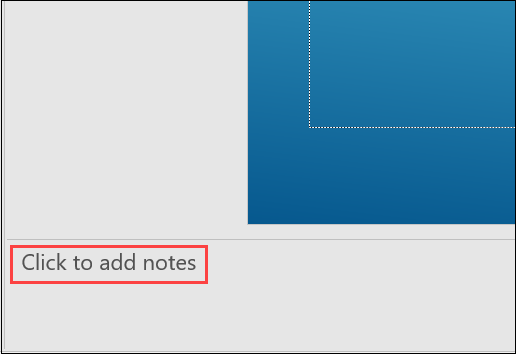
- A Notes section will appear at the bottom of the slides; click to enter your notes.

View & Display
Adjust your viewing options with the icons at the bottom right of your Taskbar; hover over each icon to see the associated action.
- Notes- turn Notes view on or off
- Comments- view existing Comments or add a new Comment
- Normal- slide editing view
- Slide Sorter- "bird's eye view" of all slides; reorder them here by dragging and dropping
- Reading- displays contents of a single selected slide
- Slide Show- begins the presentation from the selected slide
- Zoom Slider- drag the slider to increase or decrease the size of the slide displayed
