PowerPoint contains features and functions to help you enhance your presentation with images, objects and animations.
Background Images
Remember that the background image should not obscure nor detract from the information on your slide; it should only enhance it. To add an image:
- Right click anywhere on your slide outside a text box
- Select Format Background
- Select Picture or texture fill > Insert picture from
- Choose location of picture (File, Clipboard, Online)
- Set Transparency as desired
- Select Apply to All if desired
You may also perform this operation by selecting the Design tab and Customize group


Transitions
A Transition is the movement from slide to slide; i.e., the transition from one presentation slide to another. To set your Transition:
- Select desired slide (usually the second in the series)
- Select the Transitions tab, Transition to This Slide group
- Select desired Transition effect from the options [Mac- click dropdown tab for all options]
- Add or change the Effect with the Effect Options dropdown (Effect Options will vary by Transition selected)
- Set details in Timing group


Animations
An animation is the movement of an object on an individual slide. To add animation to the objects (images, text boxes, verbiage, etc.) : [Mac-select Animation Pane icon]
- Select area/object on slide to be animated
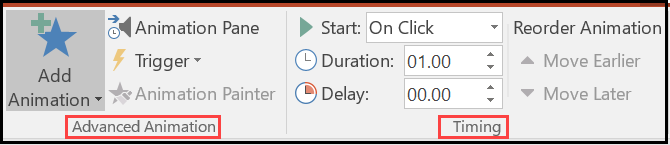
- Select Animations tab > Animations group
- Select desired Animation effect
- Choose Effect, Advanced Animation, or Timing options (Advanced Animation drop down menu allows you to add Emphasis or Exit Animation to your animated object)
- Click Preview for a brief preview of the Animation applied
Remember that each bullet point in a text box must be animated individually unless you want them to animate as a group within the text box.

Inserting & Editing Objects
Excel Files
- Open the Excel worksheet from which you wish to insert data
- Select data/table/graph from Excel worksheet (highlight), right click your mouse and choose Copy
- Navigate to the PowerPoint slide, right click your mouse and choose Paste
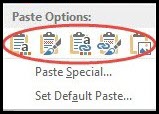
Be sure to select the desired Paste format; selecting Keep Source Formatting and Link Data will update the data on your PowerPoint slide if the data is updated in the Excel file. (Data on the slide will be updated when the PowerPoint presentation is opened following data update in the Excel file.)
Video Files
The best way to insert a Video file into a PowerPoint slide is by using a Slide format that contains a Content box.
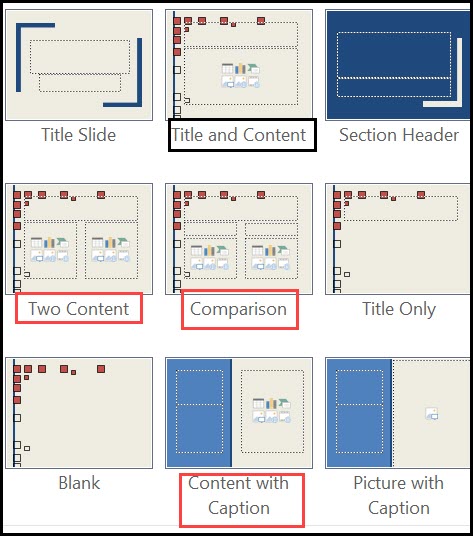
- Navigate to the Content Box in body of slide and select Insert Video placeholder
- Browse to the video file from Insert Video menu
- Select desired video and click Insert
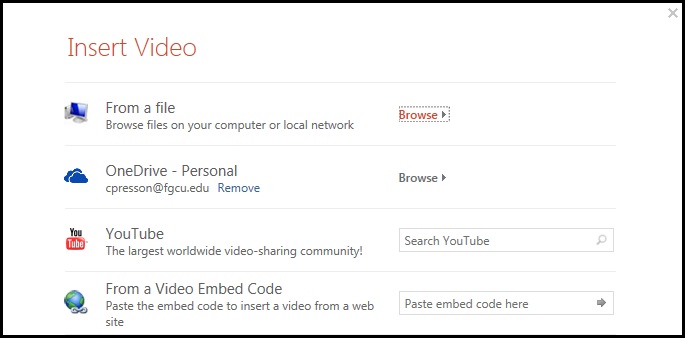
Note that when the video appears on your PowerPoint slide, a Video Tools contextual tab appears on the Ribbon; you may use this to adjust your Video.

Picture/Image Files
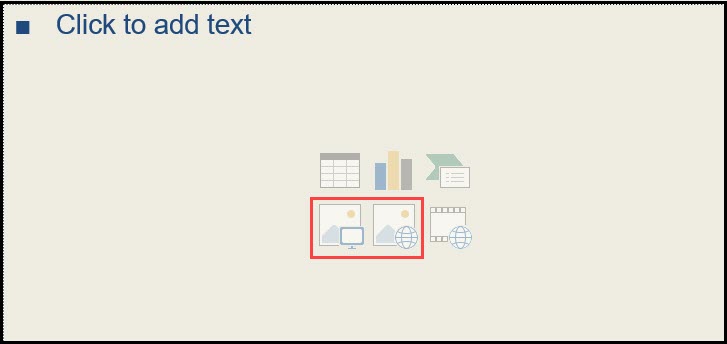
The best way to insert a picture or image in a PowerPoint slide is by using the Content Box options.
- Go to the Content Box in the body of your slide and select the Pictures or Online Pictures icon [Mac-file folder icon; image must be saved in accessible file]
- Browse for the desired picture and select Insert
- Move and/or resize picture as desired by selecting and dragging
- Use Picture Tools Contextual Tab to adjust image/picture

Save & Print
Save PowerPoint File
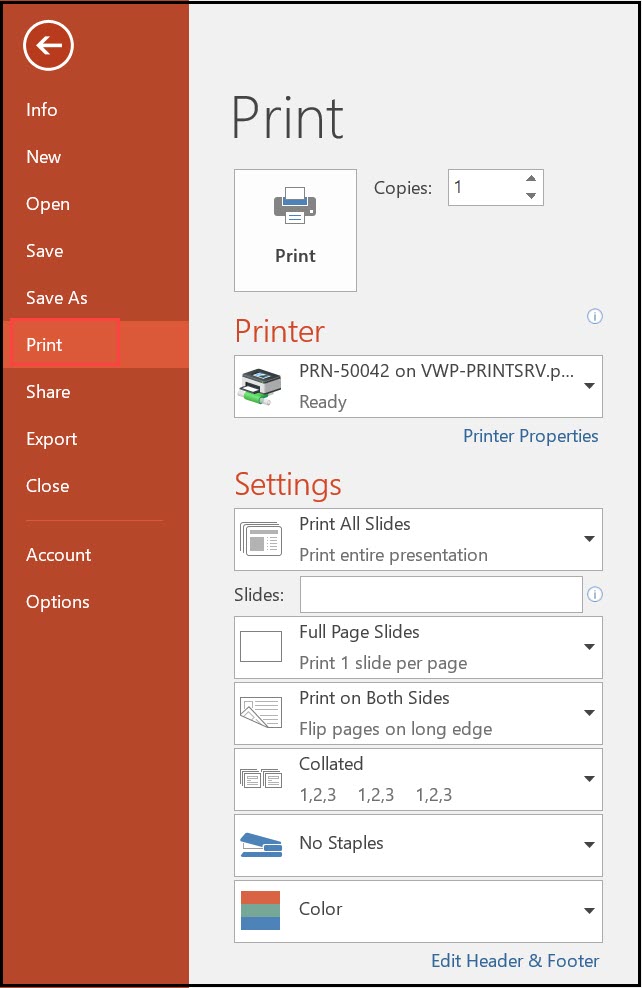
- Go to File tab
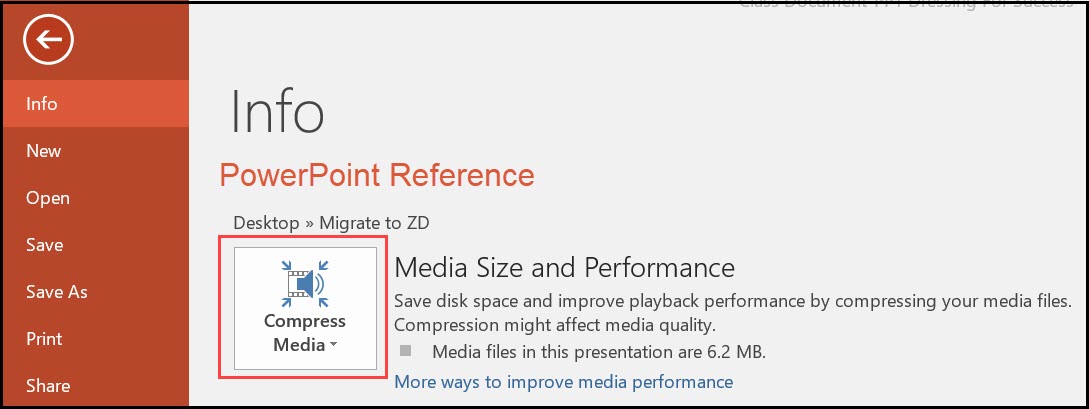
- If embedded video or large images files are present, select Compress media
- Browse for Save location
- Navigate to File tab
- Select desired Printer
- Click individual option field dropdowns to select desired options under Settings
- When ready, click Print
NOTE: Slides with Notes are frequently used for classroom handouts