What this article covers
This article covers using the Microsoft Editor that runs in Word for Microsoft 365 to analyze your document and offer suggestions for spelling, grammar, and stylistic issues, like making sentences more concise, choosing simpler words, or writing with more formality. In this article you will learn:
How to Access the Editor
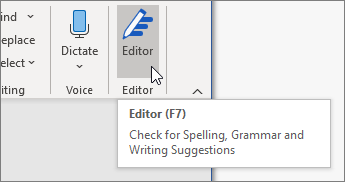
To use Editor, on the Home tab choose Editor.
How to Review Suggestions
To focus on the issues you care most about, choose a correction or refinement type, like Grammar or Clarity. Then, use the arrows near the top of the pane to step through each of that type of issue.
Choose a suggestion to incorporate it into your document. If you don't like the suggestion, choose Ignore once. Or, if you never want this type of suggestion, choose Stop checking for this.
Note: If you change your mind about an issue you ignored, close and reopen the document, and go back to the Editor. The Editor will find the issue again.
How to Tailor What the Editor Checks
By default, the Editor checks for several categories of issues, and the suggestions may or may not suit your writing style. To finely tune the Editor for suggestions you want, do the following:
-
In the Editor pane, select the type of suggestion you want to modify and choose Options.
-
In the Word Options dialog box, scroll through the list of options. Select issues you want the Editor to check, and clear the issues you want the Editor to ignore.
Note: Choosing Reset All returns to the default settings.
-
Choose OK.
