How to get MAC Addresses for Your Devices
In this article we go over how to find the MAC Address for the following devices :
- IOS iPhone and iPad
- Android Phone and Tablet
- XBOX
- PS4
- Nintendo Switch
- Apple TV
- Roku TV
- Windows OS
- Mac OS
IOS iPhone and Ipad
- Tap Settings
- Tap General
- Tap About
- The device's MAC address will be listed next to Wi-Fi Address
Android Phone and Tablet
- From the Home screen, tap the Menu key and go to your Settings
- Select About Phone or About Tablet
- Select Status
- The device's MAC address will be listed next to Wi-Fi MAC address
XBOX
- Press the Menu button on your controller
- Navigate to the Settings page
- Select Network
- Select Advanced Settings
- MAC address will be listed next to Wired MAC on the right-hand side of the screen
PS4
-
Turn on your Playstation 4 without any disk in the drive and wait for the menu to pop up
-
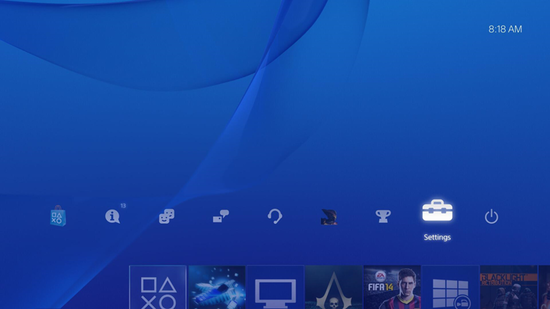
Navigate to the Settings icon (located on the far left)
-
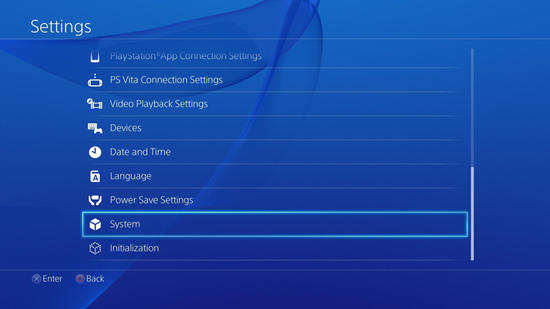
Select the System icon under the Settings menu
-
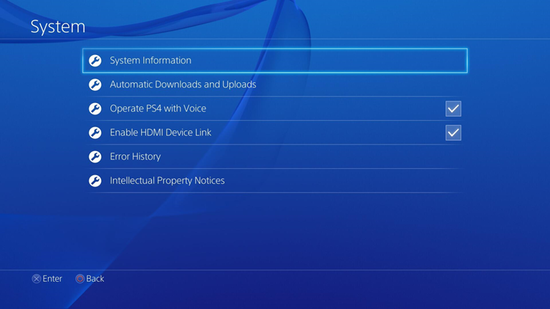
Select System Information
-
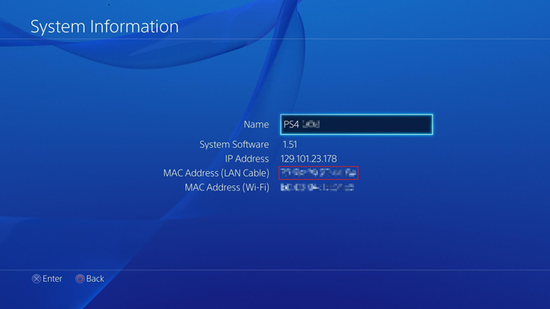
You will see your MAC address listed on this screen, containing letters and numbers in the format xx.xx.xx.xx.xx.xx.
Nintendo Switch
System Settings > Internet and locate the System MAC Address.
Apple TV
The Ethernet (wired) and Wireless network MAC addresses can be found on the UPC label on the Apple TV box. They can also be found in the Apple TV settings.
- Go to the main menu on your Apple TV device, and select Settings
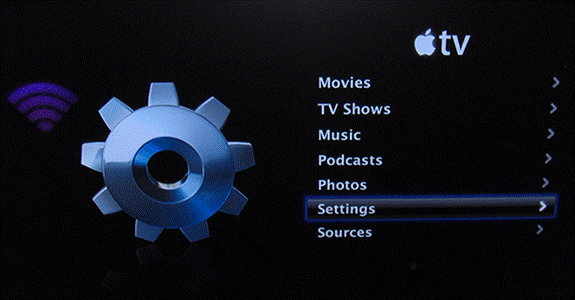
- Select About from the menu for the network information.
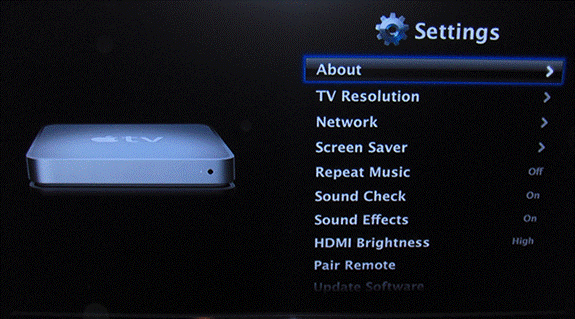
- Here you can find your MAC Address, listed as either the Wireless ID or Ethernet ID (depending on the connection you are using)

ROKU TV
- Press the following sequence of buttons on your remote :

- Locate the MAC Address in the secret menu
Windows OS
- Click the Start menu in the bottom-left corner of the screen.
- Select Run or type cmd into the search bar at the bottom of the Start menu to populate the command prompt.
- Type ipconfig /all (make sure to include the space between "g" and "/") and press enter.

- The MAC address is listed as a series of 12 digits, listed as the physical address (00:1A:C2:7B:00:47, for example).
Please note: Each network adapter (wireless, Ethernet, ect.) has a separate MAC address.
Mac OS
- Select System Preferences from the Apple menu.

- Click Network.
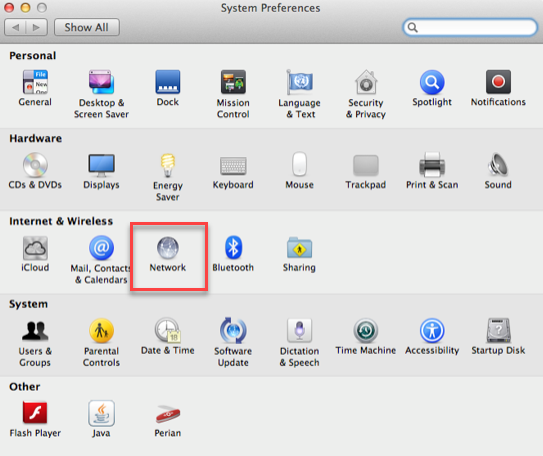
- Select Wi-Fi from the list on the left and click the Advanced button.

- Select the Hardware tab and the MAC address will appear below.
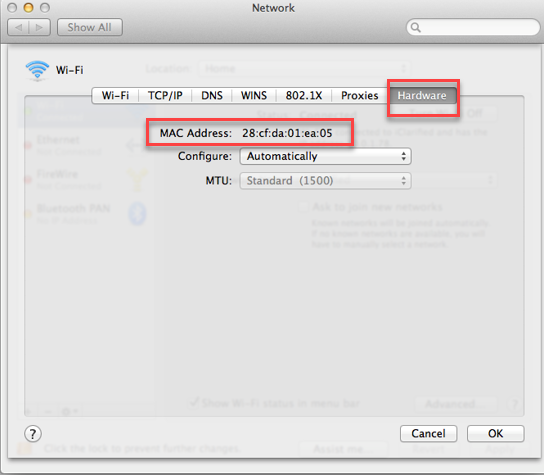
- Return to the Network menu and Select Ethernet from the list on the left and click the Advanced button.
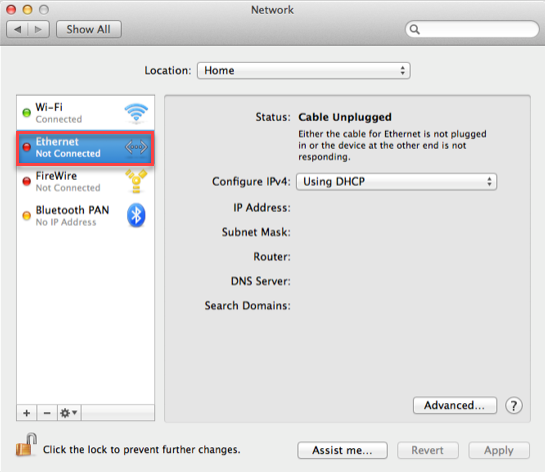
- Select the Hardware tab and the MAC address for the ethernet card will appear below.
