This article contains the steps that need to be taken to prevent your computer from hibernating or going to sleep.
- Click the Windows Icon to bring the search bar, type in "Power & Sleep Settings", and hit the enter key.

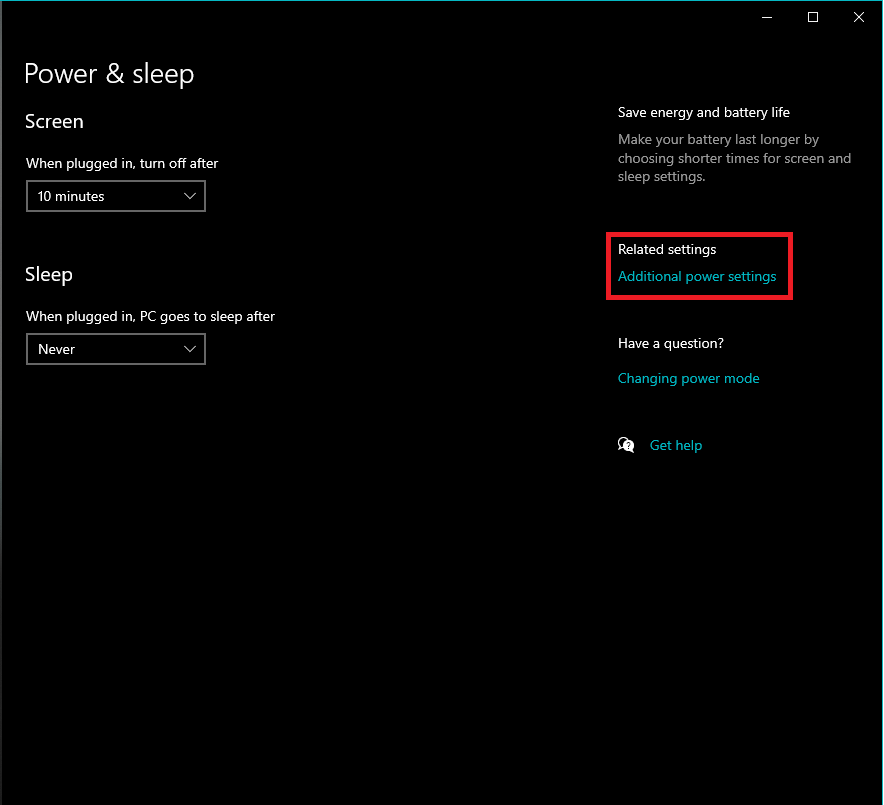
- Under the Related Settings tab click on "Additional Power Settings."
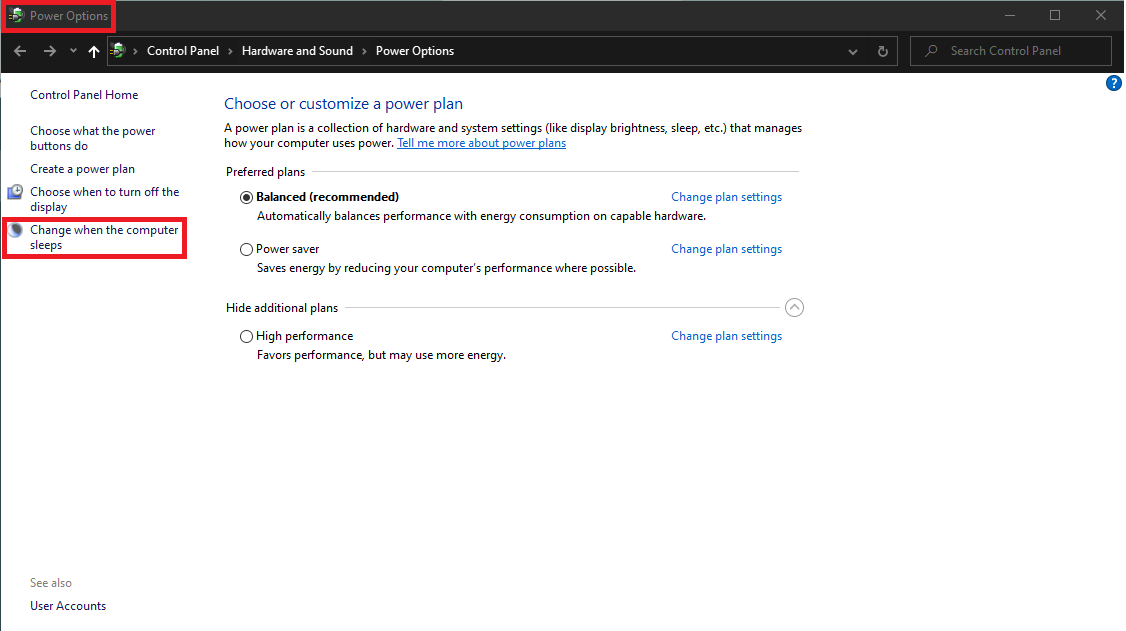
- You will be prompted with the Power Options screen, click on "Change when the computer sleeps."
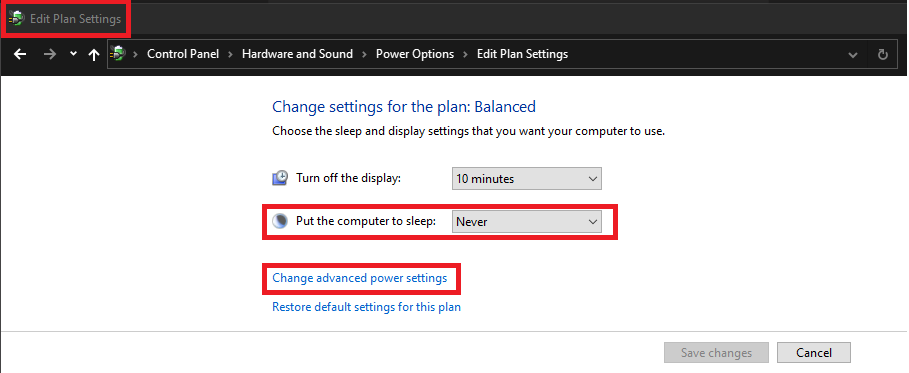
- You will be prompted with the Edit Plan Settings screen.
Note: Make sure the "Put the computer to sleep:" is set to NEVER. Save changes and then click on "Change Advanced Power Settings."
Once done, click "Change Default Settings for this plan."
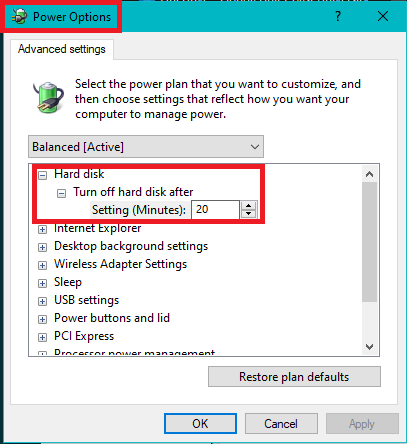
5. You will be prompted with the "Power Options" screen. Once on this screen make sure the following settings are set to:
Note: You will have to click the "+" to expand each nested view.
-
Hard Disk: Turn off hard disk after: Setting (minutes): 0
-
Sleep: Sleep after: Setting: Never
-
Sleep: Hibernate after: Setting: Never
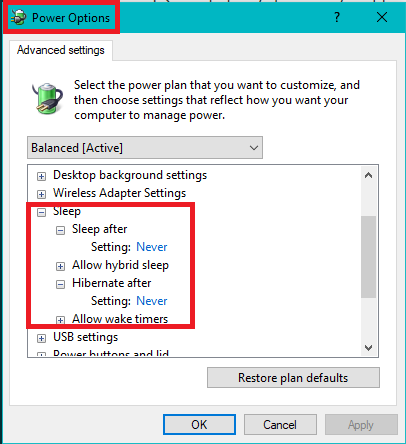
6. After the following settings have been checked, click Apply and then, click OK.