This article outlines the steps on how to set up and turn off automatic replies in Webmail.
Set Up An Automatic Reply
1. Sign Into Webmail via this link https://www.fgcu.edu/email/.
2. Select the gear icon at the top right hand corner of the screen.

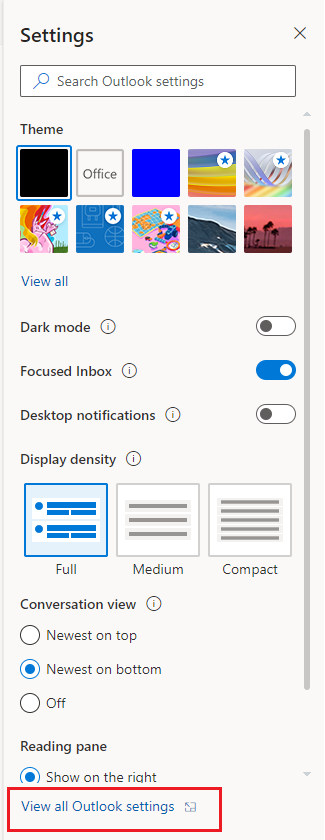
3. Select View all Outlook settings at the bottom of the Settings menu.
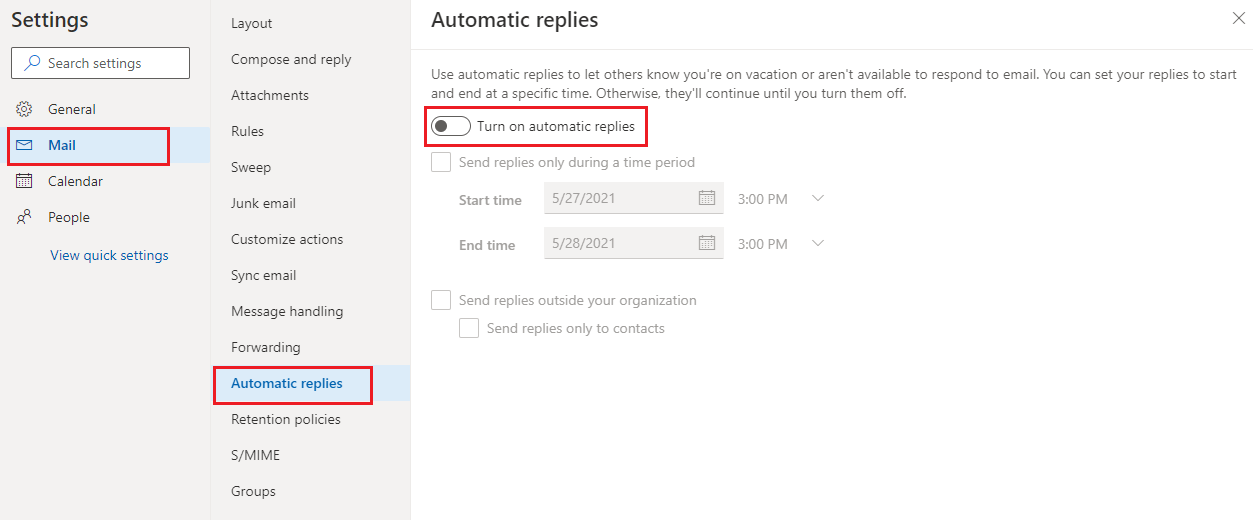
4. From the left side menu select Mail > Automatic replies > Turn on automatic replies
- Note: The options to select a time frame for automatic replies to be sent out and to create a specific automatic message to be sent are only available after the automimic replies option is turned on.
7. Once you have selected all desired options, select Save.

Turning Off Automatic Replies
1. Sign Into Webmail via this link https://www.fgcu.edu/email/.
2. Select the gear icon at the top right hand corner of the screen.
3. Select View all Outlook settings at the bottom of the Settings menu.
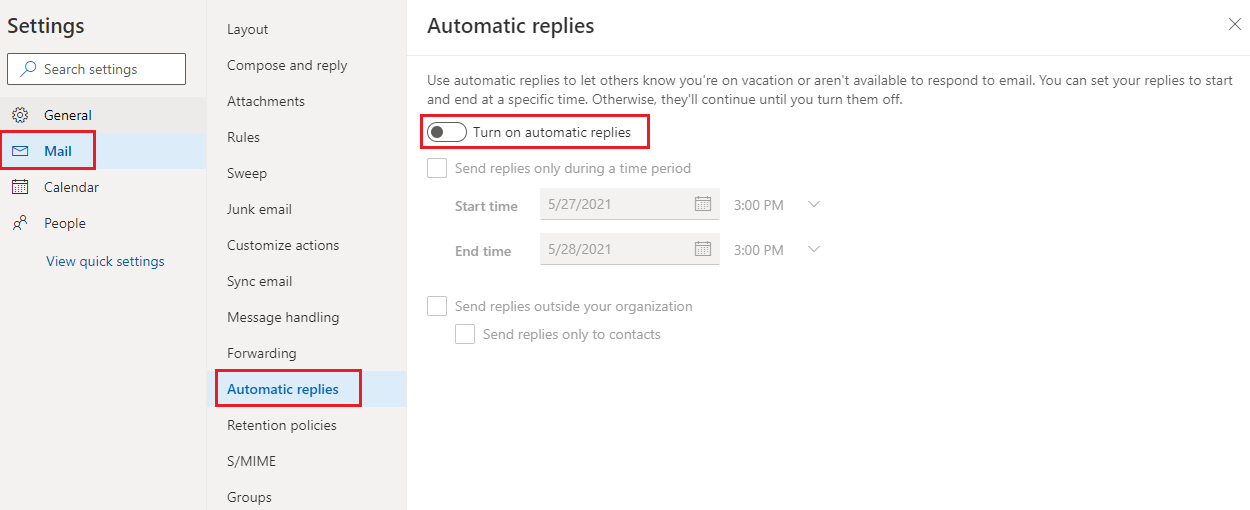
4. From the left side menu select Mail > Automatic replies > Turn off automatic replies
6. Once you have selected all desired options, select Save.